

Licensing
From the main administration page you can access three license-related functions:
Manage Licenses
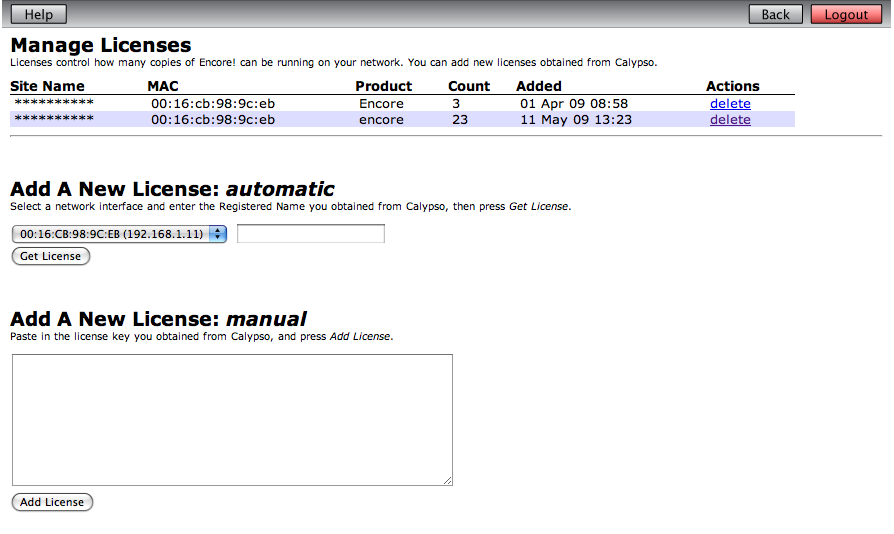
The manage licenses page (see screenshot 1) allows you to see the licenses installed on the server, and to add new licenses obtained from FrontRow.
Each license is shown with the following information:
- License Authorization. This is the site-specific authorization string where the license is installed, also referred to as a Registered Name or an LID. The service will only accept license lease requests from application clients that have been set up with this authorization.
- UID. The unique identifier for the server, usually the MAC address of the physical network device on the server that this license is locked to.
- Product. The product that is served by this license. An example would be the Encore! application.
- Count. The number of simultaneous running copies of the product that this license supports.
- Added. The date and time the license was added to the system.
- Delete. Allow you to delete a license file from the system.
This page also lets you add a new license, in one of two ways:
- If you have already have a License Authorization from FrontRow, you can download a license directly from FrontRow. In the section Add A New License: automatic, select the network adapter address the license has been recorded against, enter the License Authorization code in the edit field, then press the Get License button. The license should be downloaded and installed.
- Alternatively, you may already have arranged for a license key to be sent to you in a file, which may be required where your server does not have direct internet access and so you cannot use the method above. Simply paste the license key in the text text field under Add A New License: manual, and press Add License. The service will validate the license, and check that it hasn't already been installed. If everything is OK the license details will immediately become available for use.
View Current Leases
The current leases page (see screenshot 2) shows all the current license leases that have been handed out to client applications. Each client is shown as a line in the table, with details of the client machine (UID and IP address), when the license was created, and when it will expire.
View Issue Log
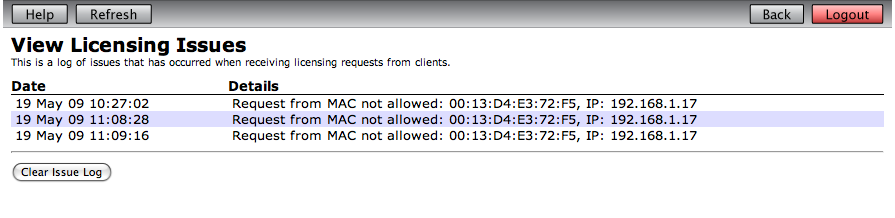
The issue log (see screenshot 3) shows any problems that have occurred with licensing. One of the main functions of the log is to alert you when client applications are unable to obtain a license lease. This indicates that your site is trying to simultaneously use more copies of a given client application than you have licenses available. You could then consider whether to obtain more licenses.
The log can show the following error conditions:
- No Available Leases. The maximum number of license leases supported by the currently installed server license have been allocated. You can only run more instances of a client application by obtaining additional server licenses from FrontRow.
- No suitable licenses. The client requested a license using a License Authorization that does not have a corresponding license file installed on the server.
- Invalid Request code. The request issues by the client is not valid. This may indicate that someone is trying to break into the system.
- Invalid user agent. A request was received, but it did not come from a valid FrontRow product. This may indicate that someone is trying to break into the system.
- Invalid address. A request was received, but the IP address was not valid. This may indicate that someone is trying to break into the system.
- Could not allocate lease. There was an error adding the lease to the database. Contact FrontRow support.
You can clear the issue log, once you have reviewed the entries, using the Clear Issue Log, button.