
Software Updates
From the main administration page you can access two software update functions:
Manage Update Files
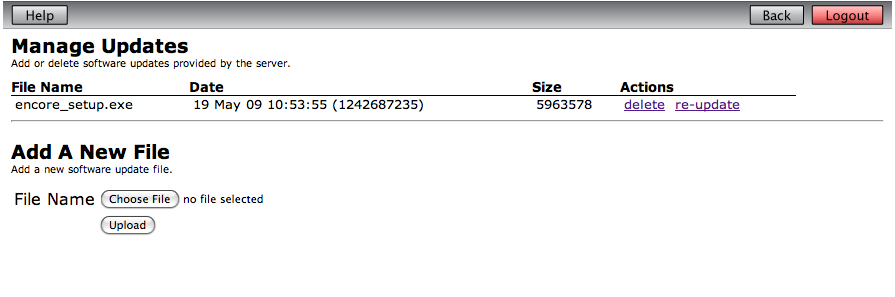
This page (see screenshot 1) allows you to see the update files that are available to clients, to add new files, and remove existing ones.
The table shows all update files that have been loaded onto the server, showing the name, the file date, and file size. You can remove a file from the server by clicking the delete link on its line.
To add a new file, use file file selector in the Add A New File second, then press Upload to upload the file to the server. Note that only executable files can be uploaded, any other file will be rejected.
View Update Log
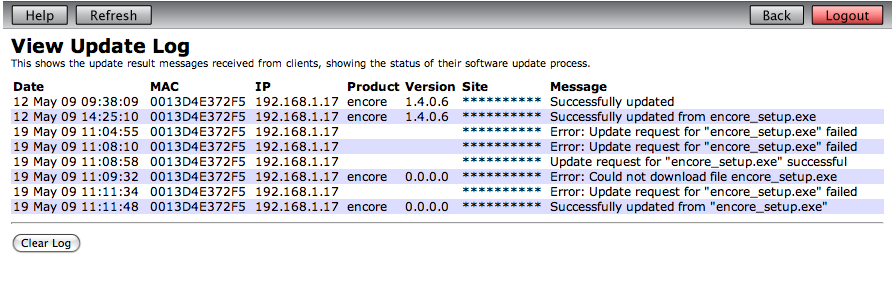
The update log (see screenshot 2) shows reports from client applications, showing the results of software update operations. After each update attempt, the client app will send a message to the service saying whether the update was completed successfully, or failed for some reason. This is useful to see whether updates have been successfully deployed to computers on the network, and if any computer had a problem and was unable to perform the update.
The table shows the client application reports, with the following information:
- Date. The date and time the report was received.
- UID. The unique identifier for the client computer, usually its MAC address.
- IP. The IP address of the client computer.
- Product. The product that was being updated.
- Version. The version of the product that has sent the report - the current;y installed version.
- LicAuth. The license authorization.
- Message. The message contains information, and can include:
- Successfully updated. An update was downloaded and installed without problems.
- Could not download file. The client tried to download an update file, but the file could not be found.
- Could not create temp file. The client downloaded an update file, but could not write it to disk.
- General download failure. Some other download error occurred.
- Could not launch installer. The client downloaded the file successfully, but when it tried to run the installer it failed.
- Invalid info structure. The information returned from the server was invalid.
- Invalid XML. No update information was returned from the server.
- General Failure. Some other error occurred.
You can remove all entries from the log by pressing the Clear Log button.